How to get and claim Rust skins from Twitch drops
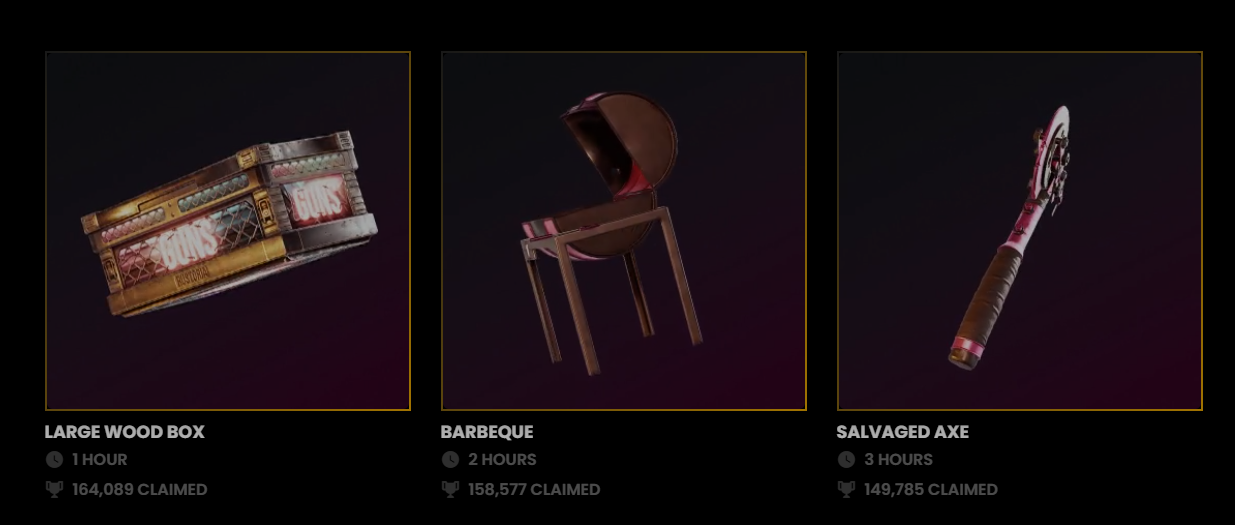
Rust skins can be frequently obtained at no financial cost by watching Rust-affiliated Twitch.tv streams, which usually requires a certain amount of watch time to unlock a skin that you can claim. The setup and claiming process is very easy and seamless.
Sign up or log in to Twitch.tv
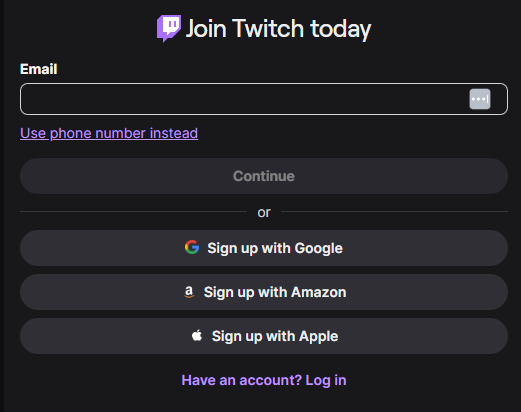
First off, to qualify for a Rust drop, you need to have a Twitch.tv account, which is free to create. Log in to your Twitch.tv account or create a new Twitch.tv account if you don't have one. Creating a Twitch account is the same as many other popular platforms (Facebook, Twitter/X. Amazon...), where you can sign up with email or phone number or even use quick connect options with Google, Amazon, or Apple.
Find if there is an ongoing drop for Rust skins
Once you have the account, you're eligible to get Twitch drops. There are three ways to spot an ongoing Twitch drop for Rust skins. The most obvious one is checking the Facepunch official page about drops, which specifies exactly what you can get and even the channel the drop is on if it is not open to every Rust stream. The second option is to join any Rust stream (found by clicking "Browse" at the top left of Twitch.tv and selecting the Rust category) and check whether there is a purple lootbox icon right below the "Send a message" entry field in the chat area. If the icon is available, you can click it and see what drops are available for the stream that you're watching.
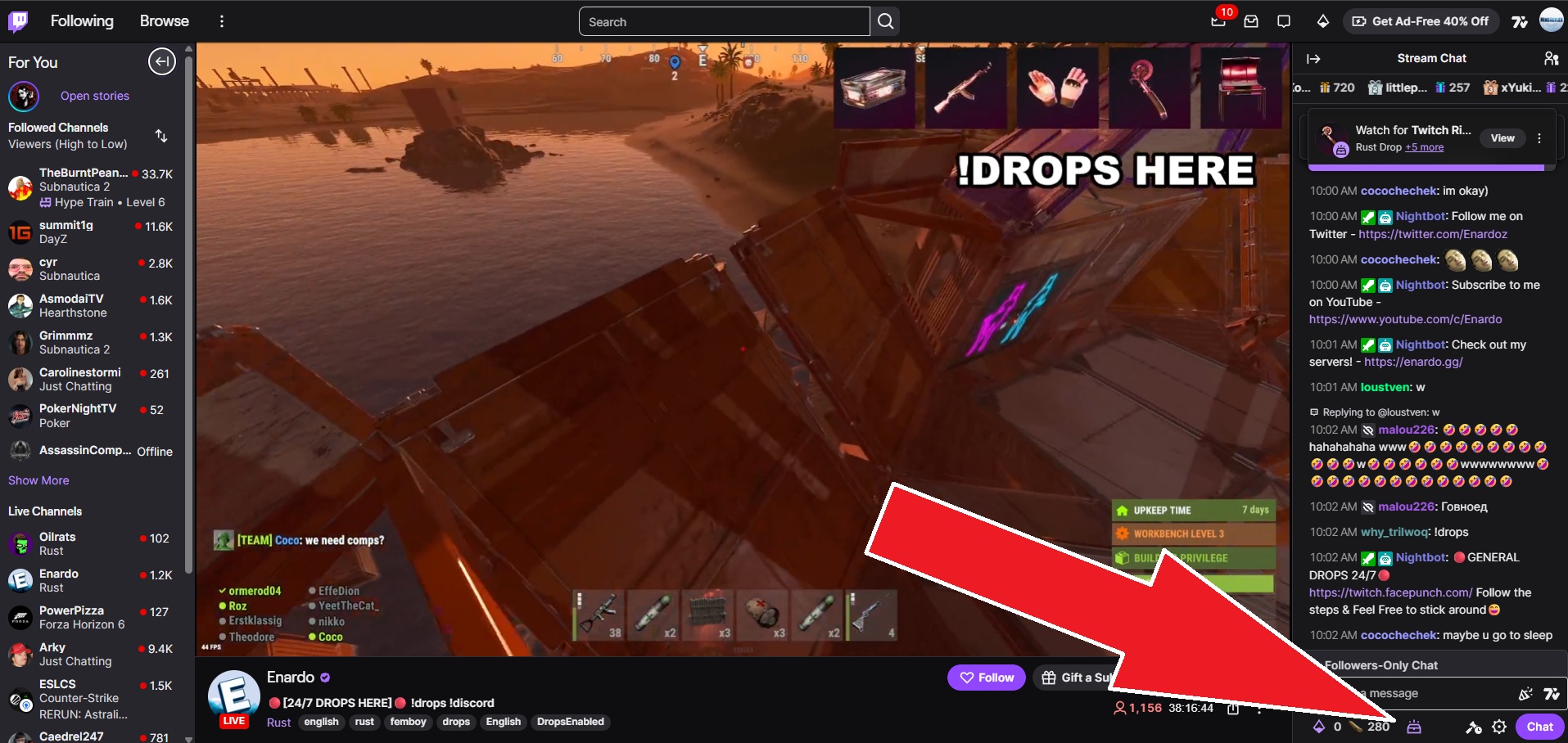
NOTE: Sometimes, Rust drops are only available for selected streamers, meaning that not all Rust streams can have available Twitch drops. Use the first or third method below to double-check if the drops are available.
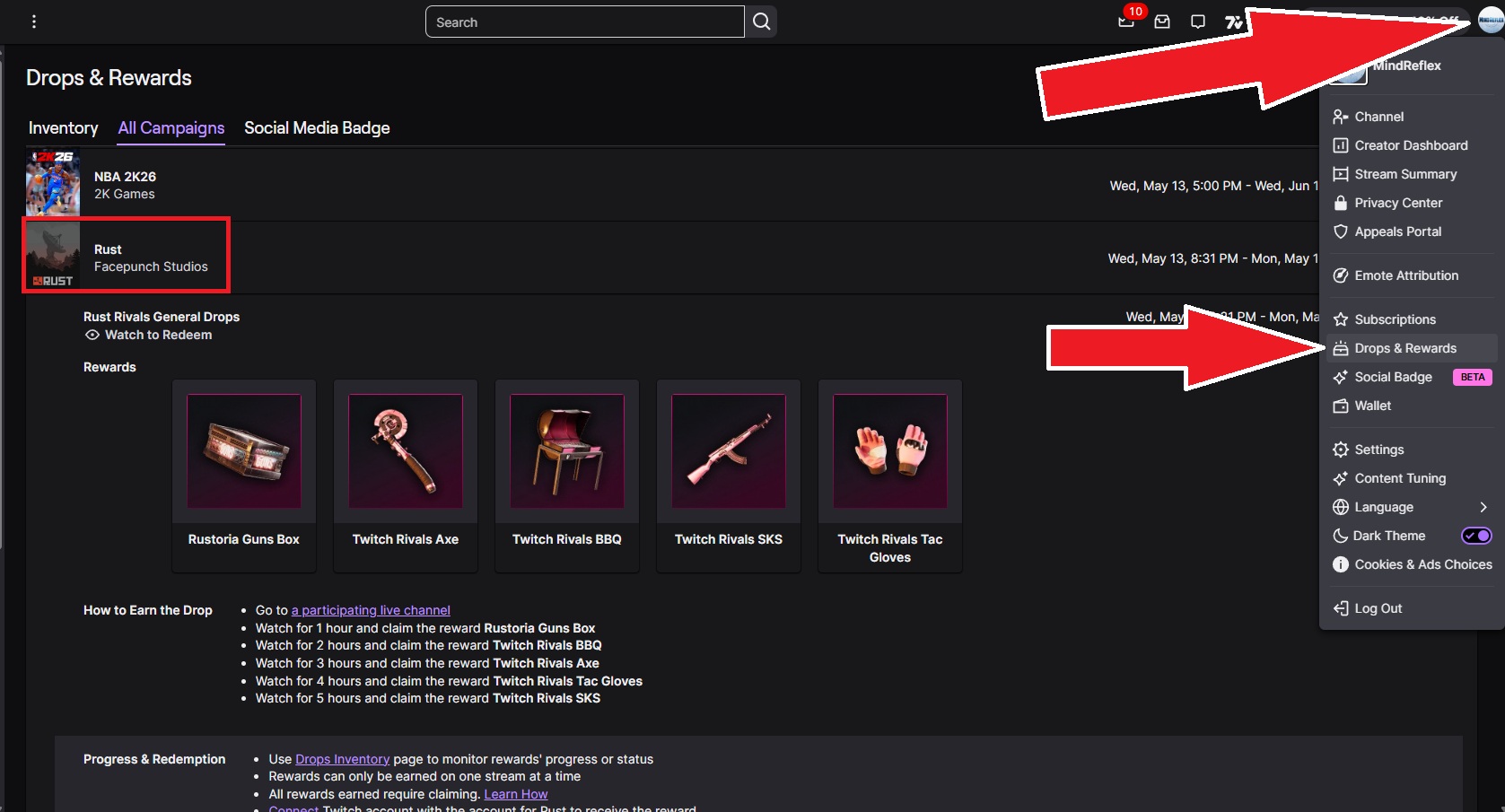
The third method is to click on your circular Twitch.tv profile image at the top right of the website window, click "Drops & Rewards", click on the "All Campaigns" tab, and browse the list of active drops on Twitch. For Rust specifically, you should be able to find Rust in the list of games if there are currently active drops for Rust.
Watch & Monitor your progress
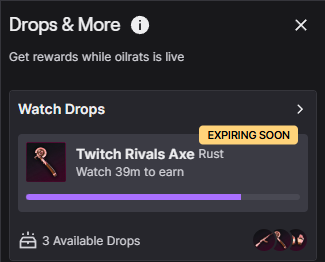
From the same purple lootbox icon of the streamer's chat that was mentioned earlier, you can monitor the progress of your Rust drops and also see what else is left for you to claim. The progress doesn't update instantly, and it might not update at all if you have the stream minimized, or on a different tab completely muted, because Twitch detects that you're not actually watching the stream, so the guaranteed way is to have the stream open on your monitor (having audio on and/or stream tab hidden but not minimized can also work). You can also view your progress from the same "Drops & Rewards", but this time on the "Inventory" tab.
Check if you got a drop
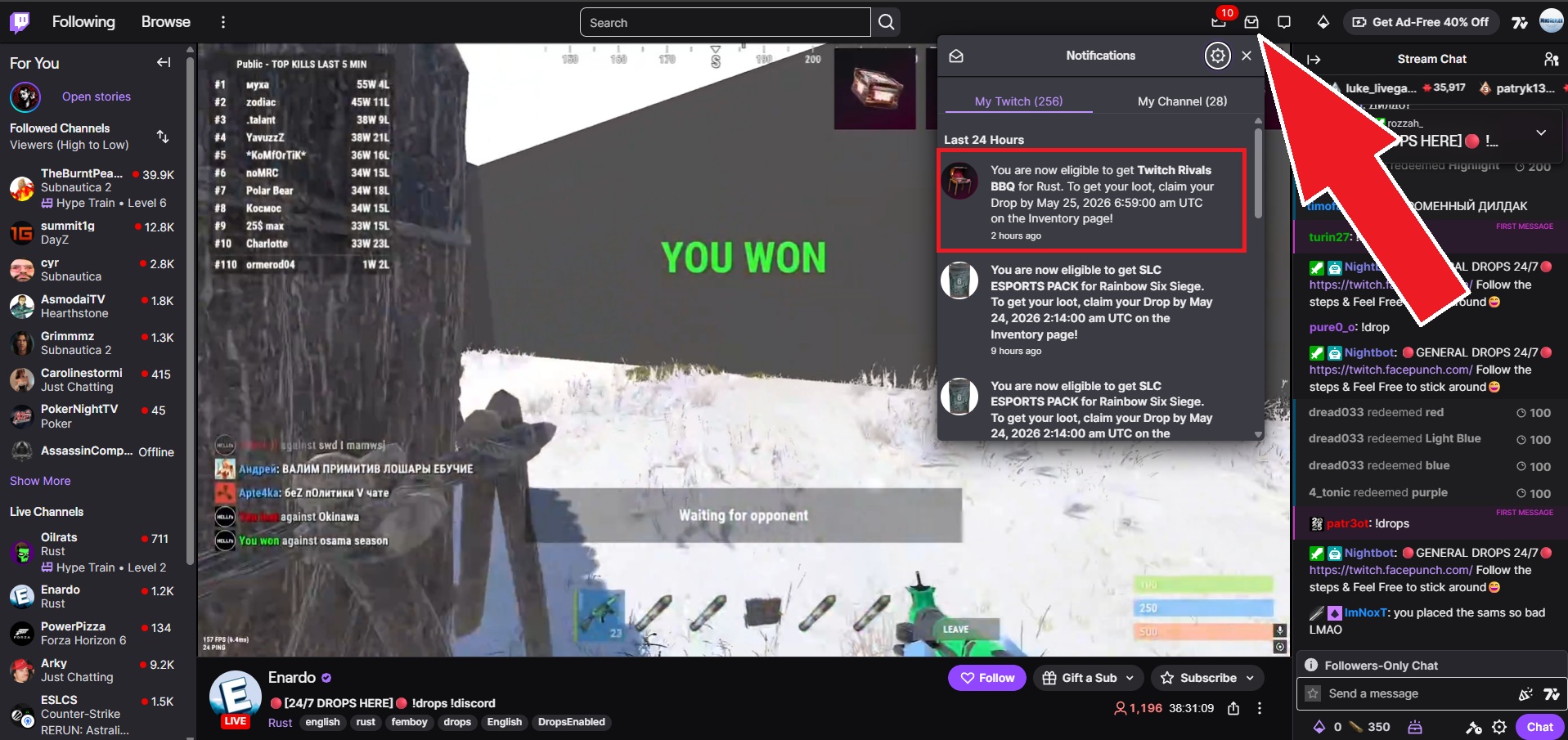
As soon as you reach the required watch time for your drop, you will receive a notification at the top right saying that you're eligible to get your item/s. An alternative way to check it is by clicking your Twitch.tv circular profile image at the top right, "Drops & Rewards" and in the "Inventory" tab, you should find Rust and see the available items to claim and the watch time progress for items that you don't have enough watch time for yet.
Claim your drops
If you're already at the "Drops & Rewards" page, you're already at the correct page. If you're going through your Twitch.tv notifications, click on the notification that mentions receiving Rust drop. On the tab that opens, find Rust, and you should see items that are available to claim. Click the purple "Connect" button to proceed.
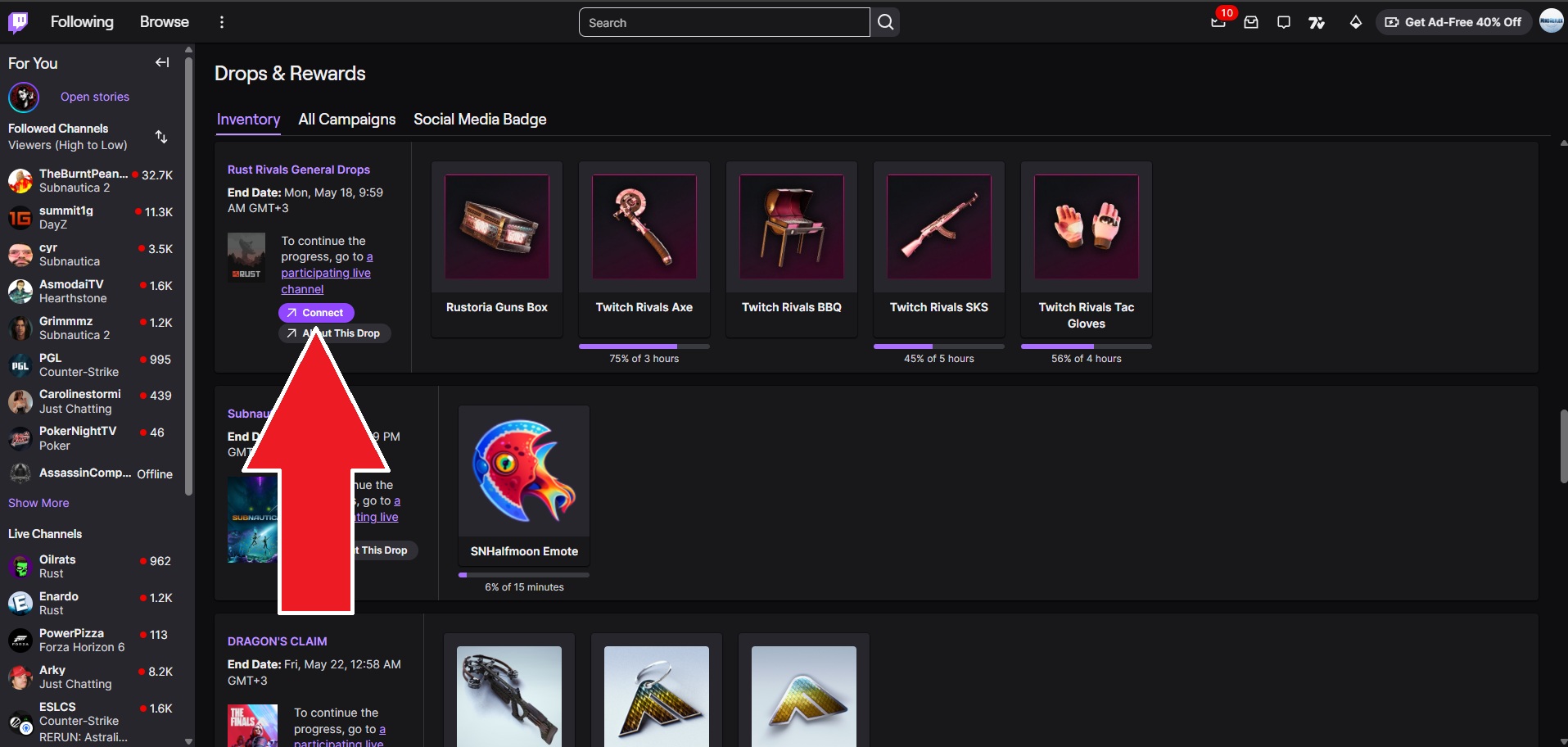
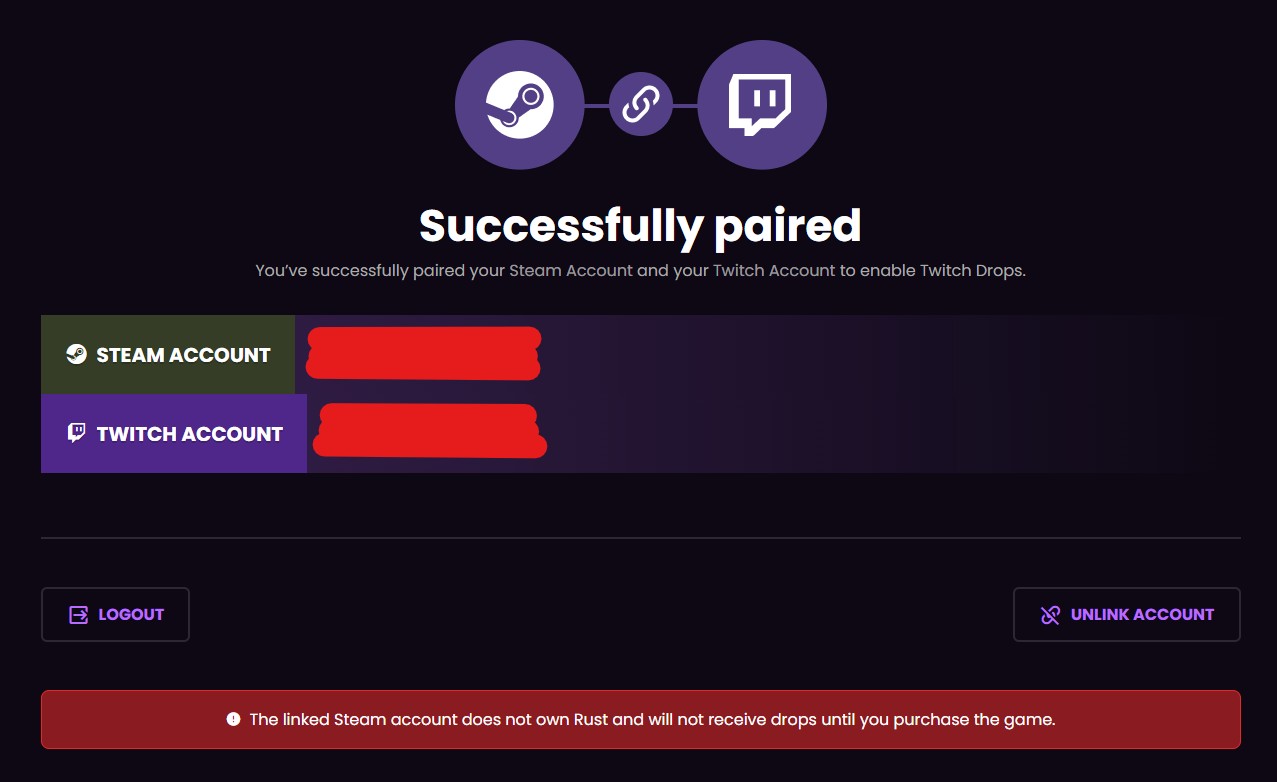
After clicking "Connect", it will take you to the Facepunch Twitch Drops page, where you have to connect your Steam account that has Rust on it and your Twitch account that you have collected the drops on. Once that is done, your new items are successfully claimed. Now you can hop into the game and use these items freely.
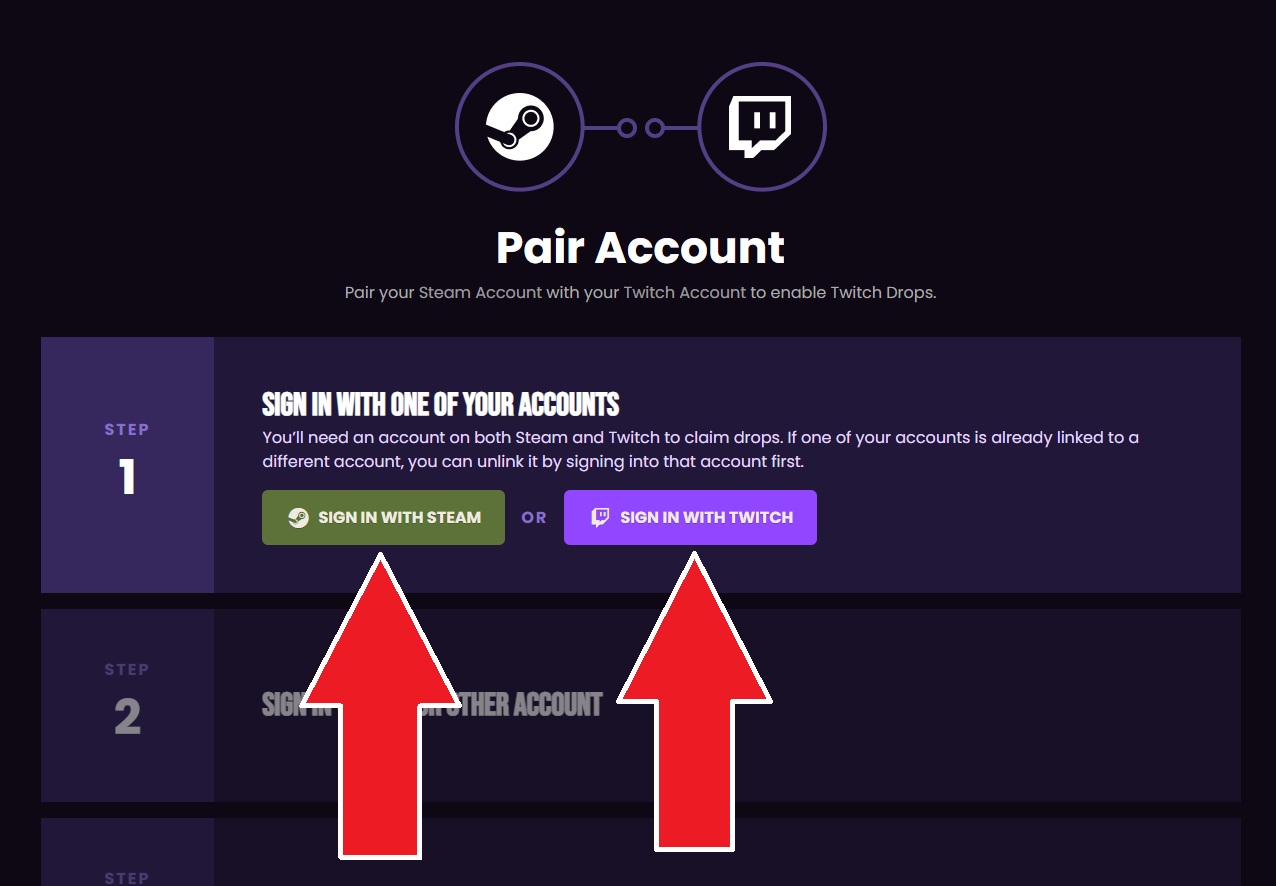
NOTE: You cannot claim any Rust items from Twitch drops if you don't own Rust on your Steam account. This can be checked on the Facepunch pairing page after you're done linking your Steam and Twitch accounts. If you're not eligible for Twitch drops, you will see the red box saying that you can't claim drops until you purchase the game.